
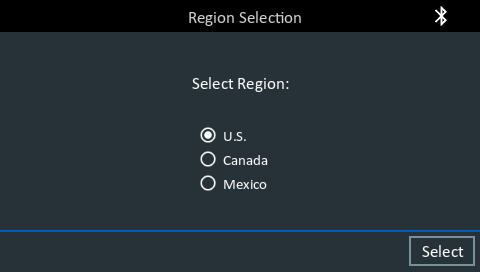
1. Upon initial power-up, the Region Selection screen is displayed. Select your region and tap Select to continue.
2. Next the Language Settings screen is displayed. Select your languages for the tool, results, emails and printouts.

3. A Consent to Collect Data screen is displayed. Tap the Consent check box and then tap Next to continue.
4. The Admin Account setup screen is displayed. Enter a username and password if you wish to set up an admin account. If you do not, you must establish at least one user account, but can have the password be optional. Enter the username and select Next.

5. The Date/Time Settings screen is displayed. Select the date, time format, date format and time zone, and select Next to continue.
6. The Test Settings screen is displayed. Select the temperature units and decimal separator; and select Next to continue.
7. The Device List screen is displayed. Select Next to continue.
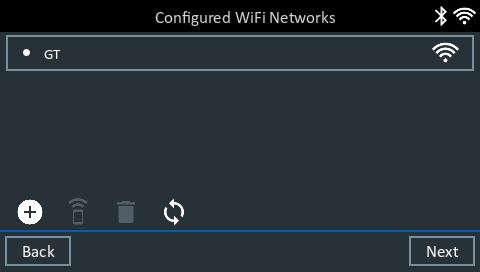
8. A listing of detected Configured WiFi networks is displayed. Tap the (+) button to add a network.

To add a network: Tap the plus (+) sign, then select from one of the displayed detected networks.
To manually add a network, tap the plus (+) sign again. Follow the on-screen instructions to select the Network SSID, Security, and IP Settings. Tap Next when finished.
Use the onscreen keypad to manually enter the Network SSID, security type, and IP settings. If necessary, enter the WiFi network password. Tap Next when finished.
A confirmation screen is displayed when the analyzer has successfully connected to the WiFi network.
To delete a network: Tap a displayed network to select it. Tap trash can icon  to delete it.
Once the tool has successfully connected to WiFi, it will display the Configured WiFi Networks screen. Select Next to continue.
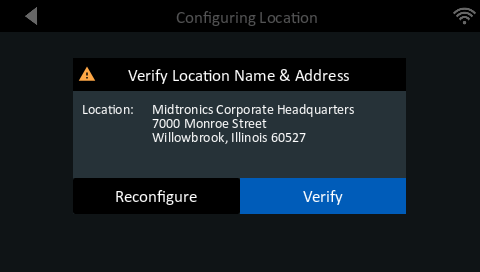
9. The Location selection screen will be displayed. Begin typing your location/dealer ID. Once your location has been identified, select it by tapping on the location information.
Verify your location by selecting Verify or if this is the incorrect location information, select Reconfigure to allow yourself to re-enter the Location ID.
10. Once your location is confirmed the BMIS login information screen will display. This will confirm your location and your connection status to BMIS. If everything is correct, select Next.

11. Next you will go to the email address book. You can add email addresses to be stored in the tool by selecting the (+) sign. This will allow you to access the stored email address for sending records directly from the tool. This step can also be skipped during Initial Setup and email addresses added from the Settings menu. Select Next.
12. The final Initial Setup screen will allow you to enter your Shop information. This includes the name, address and any other fields you may want entered. The information entered here will be displayed on the top of the onboard tool printouts, as well as emailed results send from the tool.

Select Done to proceed to the Login screen.
13. Here you will see the login screen and the username(s) you created earlier. Select a User to go to the home screen and get started.
